
If you’re searching for the ultimate dual monitor gaming layout, you’re likely looking to gain a competitive edge, streamline your setup, and make every gaming session more immersive and efficient. Whether you’re grinding ranked matches, streaming to your audience, or managing guides and chats on the fly, the right configuration can completely transform how you play.
This article breaks down exactly how to design a high-performance dual monitor gaming layout—from optimal positioning and resolution matching to refresh rate considerations, GPU requirements, and desk ergonomics. We’ll also explore how competitive players and streamers use dual screens to track stats, manage communication, and sharpen in-game awareness without sacrificing performance.
Our recommendations are based on hands-on gaming gear testing, analysis of pro eSports setups, and real-world performance benchmarks. By the end, you’ll know how to build a layout that’s not just visually impressive—but strategically superior.
Expand Your Battlefield: The Ultimate Multi-Screen Gaming Setup Guide
Imagine your game world wrapping around you, expanding your field of view beyond a single screen. This competitive and immersive edge is what a multi-monitor setup delivers.
Moving from one display to a seamless, panoramic view can feel overwhelming. Cables, GPU ports, refresh rates, and bezel alignment matter. Start with identical monitors for smoother visuals, ensure your graphics card supports the resolution across screens, and enable your dual monitor gaming layout in GPU control settings.
Position screens at eye level with inward angles to reduce neck strain and maximize peripheral awareness.
Choosing Your Arsenal: Matching Monitors and a Capable GPU
Building a seamless battle station starts with smart monitor selection. First, focus on resolution—the number of pixels on screen. Stick with consistent options like 1080p (Full HD) or 1440p (Quad HD) across every display. Mixing resolutions may sound harmless, but it creates scaling issues and uneven visuals (like watching one Blu-ray and one VHS at the same time).
Next, prioritize refresh rate, measured in hertz (Hz). A 144Hz+ panel refreshes the image 144 times per second, delivering smoother motion and reduced blur—especially noticeable in fast shooters and racing titles. Pair that with a 1ms response time, meaning each pixel shifts color in one millisecond, minimizing ghosting artifacts.
The Importance of Consistency
Although it’s tempting to save money by mixing brands, identical monitors ensure uniform color calibration, brightness levels, and bezel thickness. The result? A cohesive panoramic image instead of mismatched panels. Thin bezels are especially valuable in a dual monitor gaming layout, shrinking the distracting black bars between screens.
Of course, even the best monitors falter without adequate GPU muscle. Aim for at least 8GB of VRAM (video memory that stores textures and frame data). Modern titles like Cyberpunk 2077 can easily exceed 6GB at higher settings (NVIDIA, 2023). Additionally, confirm your card has enough DisplayPort outputs, which support higher refresh rates and bandwidth compared to older HDMI standards.
Finally, technologies like NVIDIA Surround and AMD Eyefinity merge multiple displays into one ultra-wide canvas. Some argue single ultrawide monitors are simpler—and they’re not wrong—but multi-screen setups offer flexibility and immersive scale that feels command-center ready (Avengers tower vibes, optional).
Building the Command Center: Physical Mounting and Ergonomics
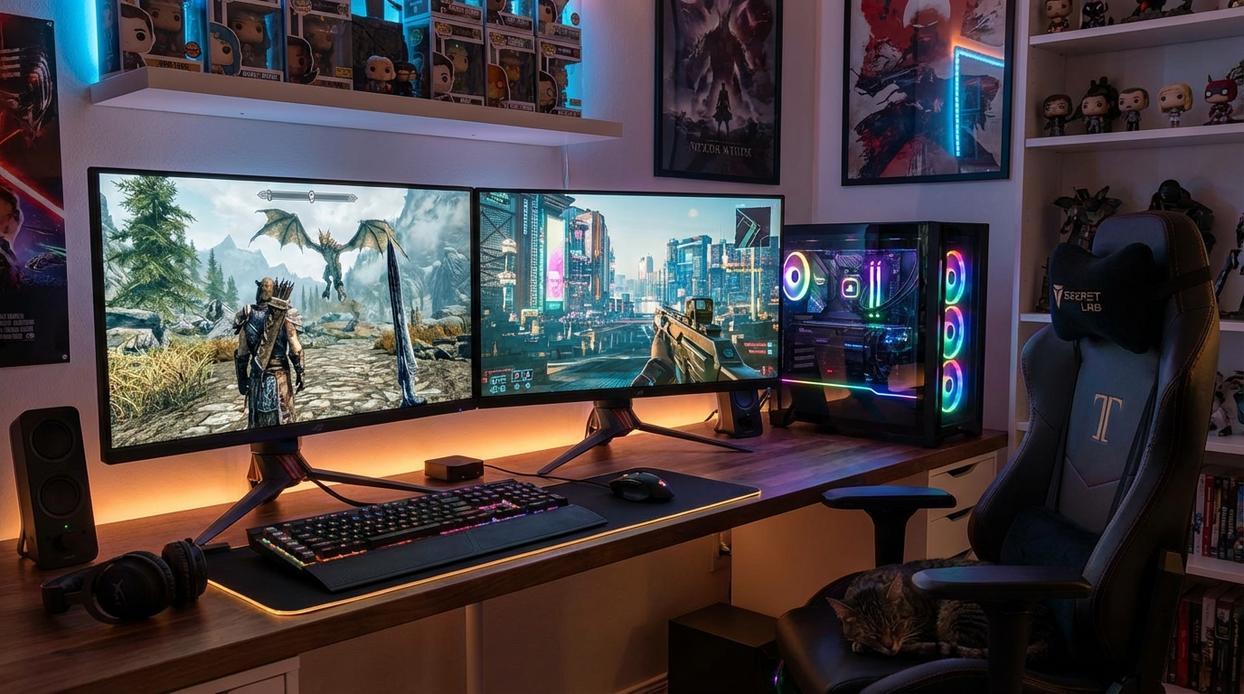
A true command center starts with desk real estate. Measure width, depth, and—often ignored—weight capacity. Many desks support 100–150 lbs, but three 27-inch monitors plus mounts can push 60 lbs alone (check manufacturer specs). Pro tip: measure the full span of your monitors side-by-side before buying; thin bezels still add up.
Some argue stock stands are “good enough.” They’re stable and cost nothing extra. Fair. But individual stands eat space and limit height alignment. A dedicated VESA (Video Electronics Standards Association) multi-monitor arm frees surface area, enables micro-adjustments, and creates a cleaner look. Gas-spring arms also reduce neck strain by keeping screens level—an advantage most competitors barely mention.
For a dual monitor gaming layout, position your primary screen directly in front of you. Then:
- Angle side monitors inward 30–45 degrees
- Align top bezels at eye level
- Sit an arm’s length away
This curves visuals into your peripheral vision (think esports cockpit, not office cubicle).
Cable management is the hidden flex. Use:
- Braided sleeves for bundled runs
- Velcro or zip ties for segmentation
- Under-desk routing channels for invisibility
Yes, cables still exist (sadly, no sci-fi wireless utopia yet). But when managed well, your setup looks—and feels—pro-tier. Counterpoint? It takes time. True. But performance and polish rarely happen by accident.
The Digital Setup: Software Configuration for Flawless Gameplay
A powerful rig means nothing if your displays aren’t configured correctly. Let’s lock in the DIGITAL FOUNDATION so your multi-screen battlestation runs flawlessly.
Step 1: OS-Level Configuration
First, tell your operating system to treat both monitors as one continuous canvas.
On Windows: Settings > System > Display > Extend these displays.
On macOS: System Settings > Displays > Arrangement, then disable mirroring.
“Extend” means your desktop stretches across screens instead of duplicating content (mirroring shows the same image twice). For a dual monitor gaming layout, this ensures your GPU outputs a unified resolution instead of two isolated ones.
Some argue mirroring is simpler. True—but extended mode unlocks IMMERSION and multitasking power (think gameplay on one screen, Discord on the other).
Step 2: Activating Gaming Mode
Next, enable NVIDIA Surround or AMD Eyefinity in your GPU control panel. These technologies combine displays into one logical screen.
- NVIDIA Control Panel > Configure Surround
- AMD Software > Display > Eyefinity
Select the correct monitor order and resolution. This step is PERFORMANCE-CRITICAL because it allows games to detect ultra-wide resolutions properly.
Pro tip: Match refresh rates before enabling Surround or Eyefinity to avoid sync issues.
Step 3: In-Game Adjustments
Inside your game, select the new combined resolution. Increase Field of View (FOV)—the visible area of the game world—to prevent the “zoomed-in” effect. Reposition HUD elements so health bars aren’t split by bezels.
Troubleshooting Common Problems
Use bezel correction tools in NVIDIA or AMD software to compensate for monitor frame gaps. If a game launches on the wrong screen, set your primary display in OS settings.
And yes—tidy wiring matters. Check out cable management tips for a clean gaming station to keep airflow optimal and distractions minimal.
More Than a Game: Leveraging Your Setup for Peak Productivity
A dual monitor gaming layout isn’t just flashy—it’s functional. Studies from Jon Peddie Research show multi-monitor users can boost productivity by up to 42%. That’s not hype; it’s measurable efficiency. For gamers, one screen runs the action while the other handles Discord, OBS, or a walkthrough (no more frantic Alt-Tab mid-boss fight).
Meanwhile, that same setup powers work and school tasks. Research from the University of Utah found participants completed tasks faster with multiple displays. View source material on one screen, draft on the other—simple, seamless.
Finally, tools like DisplayFusion add advanced window controls and custom profiles, turning your battlestation into a true multitasking machine.
Your Immersive Gaming Reality Awaits
You now hold the blueprint for a multi-screen battlestation that delivers a real tactical edge. A multi-screen rig—using more than one display to expand your field of view (FOV, the visible game world at any moment)—eliminates tunnel vision. As one competitive FPS player put it, “When I switched to a dual monitor gaming layout, it felt like someone removed blinders from my eyes.”
Still think one screen is enough? Some argue it’s “just cosmetic.” But wider visibility means faster reactions (and fewer surprise eliminations).
Measure your desk. Match your monitors. “Trust me,” a teammate said, “you’ll never go back.”
Level Up Your Competitive Edge
You came here to figure out whether a dual monitor gaming layout is really worth it—and now you know the answer. From expanded field of view and smoother multitasking to real-time strategy tracking and immersive gameplay, you’ve seen how the right setup can transform your performance.
The frustration of alt-tabbing mid-match, missing critical updates, or juggling streams and chats on a single cramped screen doesn’t have to hold you back anymore. Competitive gaming demands efficiency, awareness, and speed—and your setup should support that, not limit it.
Now it’s time to take action. Upgrade your battle station with a properly optimized dual monitor gaming layout, fine-tune your positioning, and pair it with high-performance gear designed for serious players. Thousands of competitive gamers trust top-rated gaming hardware and setup guides to sharpen their edge—so don’t settle for average.
Build your ultimate setup today, eliminate distractions, and start playing at the level you know you’re capable of.